How to replace toner cartridge in canon copier
source: Time:2026-05-09 views:127
How to replace toner cartridge in canon copier?
Is your Canon printer flashing that dreaded "Toner Low" warning right when you’re racing toward a deadline? You know the moment. We’ve all been there. Knowing how to swap the cartridge yourself — fast and without making a mess — saves you time, money, and that special frustration only office equipment can deliver.
Whether you’re wrangling a hulking office copier or a compact desktop model, a quick, confident cartridge change keeps your documents crisp. Here’s how to nail it.
Get to know your Canon toner before you tear into the box
Before you rip open a new cartridge, it helps to know what you’re actually holding. Canon offers a few different options, and which one you grab changes how often you’ll be doing this whole dance.
Standard vs. high yield
Standard cartridges are fine for light, occasional printing — they cost less up front. But if your office chews through reams of paper, high-yield cartridges are where the real savings hide. A high-capacity cartridge can easily double or triple the page count of a standard one. That means fewer swaps, less downtime, and a noticeably lower cost per page over the long haul.Genuine Canon or something else?
At some point you’ll wrestle with the “genuine Canon vs. third-party” question. Genuine OEM cartridges are the safe bet — perfect fit, vivid colours, consistent quality every single time. If you’re eyeing remanufactured or compatible toner to save cash, just be picky. A well-made compatible can work beautifully in a Canon monochrome printer. A cheap one? You might end up with leaky toner, error messages, or print that looks like it’s been dragged through sand. Check reviews, and if a deal seems too good, it probably is.Toner vs. drum — what’s inside?
Toner is the actual powder that makes your text and images appear. The drum is the electrically charged cylinder that slaps that powder onto paper. In plenty of modern Canon imageCLASS printers, toner and drum come bundled into one handy cartridge. In bigger copiers or specialised machines, they’re separate. That means you’ll replace the toner often, but the drum only occasionally. When you’re troubleshooting print quality, knowing the difference can save you from swapping the wrong part.How to swap the cartridge without the panic
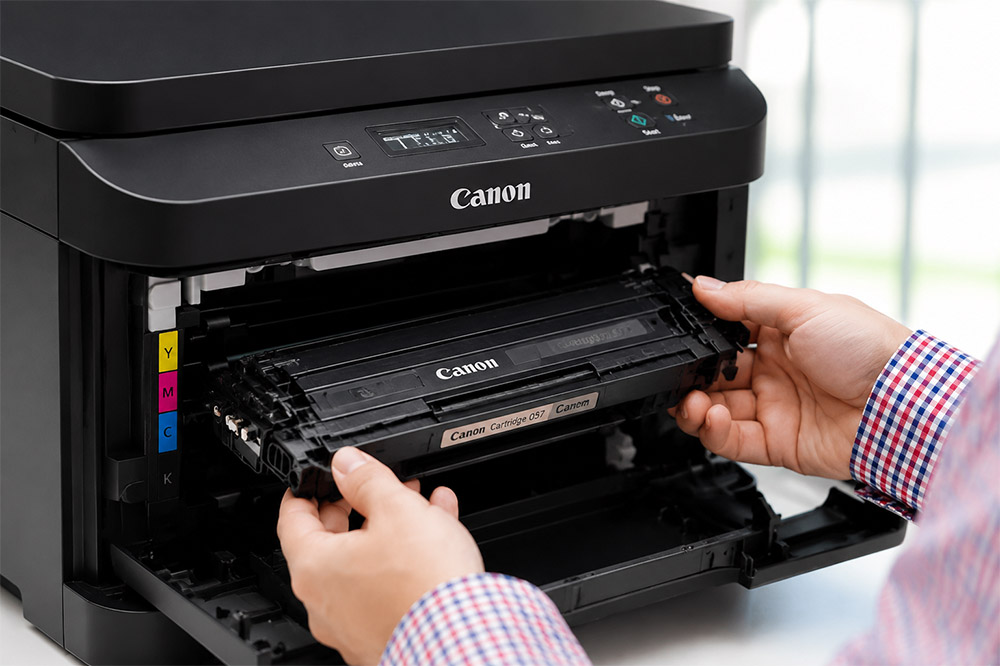
Got your fresh cartridge? Great. Let’s walk through it. A little care here stops spills and protects the guts of your machine.Open the printer or copier
Turn the machine off first — safety, plus it resets the internal logic. Lift the front or top cover. The cartridge bay should be right there, waiting.
Remove the old cartridge
Grab the handle and pull the empty cartridge straight out along its tracks. Set it on some scrap paper. Toner might have leaked a little, and you don’t want that powder on your desk (it’s a nightmare to clean).
Unpack and shake the new one
Get the new cartridge out of its foil bag. Now give it a gentle horizontal rock — think “mixing a protein shake” not “shaking a paint can.” Five or six times distributes the toner inside evenly. Skip this, and your first few prints might come out patchy.
Remove all the orange bits (seriously, all of them)
This is the step that trips people up. Find the orange pull-tab or sealing tape and pull it straight out — you’ll remove a long strip of plastic film. Also pop off any orange protective covers on the roller. Missing these will leave you with a printer that doesn’t recognize the new cartridge — or worse, one that grinds.Quick clean while you’re in there
If your machine has a corona wire (look for a little green or blue tab inside the drum area), slide it back and forth a few times. This clears accumulated dust and prevents streaks. Just make sure the tab ends up back in its starting position, usually marked by small arrows. It’s a ten-second job that can save you hours of print-quality headache.
Slide the new cartridge home
Line up the cartridge with the tracks and push it in firmly. You’ll feel a solid click when it’s seated. No click? Pull it out and try again — don’t force it.
Close up and let it calibrate
Shut the door, power the printer on, and give it a minute or two. The machine will initialise, recognise the new cartridge, and calibrate. You might hear some whirring — that’s normal.
When things don’t go perfectly
Even a textbook cartridge swap can hiccup. Here’s how to fix the most common headaches without calling IT.
Printer won’t recognise the new cartridge
Take a breath. Pull the cartridge out and double-check for any leftover orange tape or clips. Wipe the copper contacts on the cartridge with a dry, lint-free cloth — dust or static can confuse the printer. Re-seat it firmly and close the door. Still not working? Do a hard reset: unplug the printer from the wall for a full 60 seconds, plug it back in, and let it boot up. If you still see “low toner” after that, dive into the printer’s settings menu and manually reset the toner counter.
Streaks, smudges, or lines on your prints
Usually this means the toner didn’t distribute evenly before installation, or the corona wire needs another clean. Pull the cartridge, give it another gentle rock side to side, slide that corona wire tab again, and print a test page. In most cases, the second attempt solves it.
Don’t just toss the empty cartridge
That empty cartridge is plastic, metal, and electronic bits — none of which belong in a landfill. Figuring out where to recycle Canon toner cartridges is surprisingly easy. Canon runs a free recycling programme: you print a prepaid label from their site, box up the old cartridge (the new one’s packaging works perfectly), and drop it at a shipping centre. Many office supply stores also have cartridge drop-off bins right next to the printer aisle. Quick, tidy, and way better than feeling guilty about the trash.