How to Print a Test Page?
How to Print a Test Page: A Simple Guide to Troubleshooting Your Printer
Printers have a gift for acting up at the worst possible moments. You're in a hurry, something needs to be on paper five minutes ago, and the machine just sits there. Blinking. Judging you.
Before you throw it out the window or call someone who charges $100 just to show up, try this: print a test page.
It sounds almost too simple, but it's the single best way to figure out what's actually wrong. Is it a driver issue? A connection problem? Is the printer just being dramatic? A test page tells you.
For Windows Users
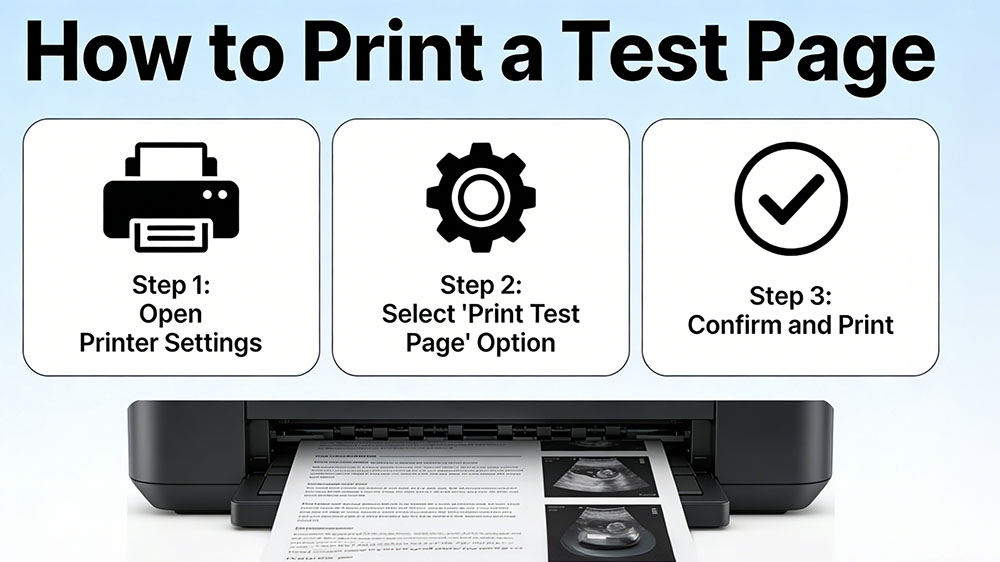
Hit the Start button and click the gear icon. That's Settings.
Go to Bluetooth & devices > Printers & scanners (on Windows 11) or Devices > Printers & scanners (on Windows 10).
Find your printer in the list and click it.
On Windows 11, click Printer properties (you might need to scroll down), then hit Print Test Page. On Windows 10, click Manage, then look for Print a test page.
If the page prints, your printer hardware and drivers are fine. The problem is probably your document or the software you're using. If it doesn't print, you've at least narrowed it down.
The "My Computer Can't See the Printer" Method
Sometimes the connection is the problem. Your computer and printer aren't talking, so going through settings won't help. You need to test the printer itself.
If your printer has a screen, dig through the menus. Look for Setup, Tools, or Maintenance. There's almost always an option to print a "Printer Status Report" or something similar.
No screen? Try button combinations. This varies by manufacturer, but a few things are worth a shot:
Hold the Cancel button (usually marked with an X) for 3–5 seconds.
Press and hold Power, then tap Cancel a few times.
If neither works, Google your printer model plus "print test page without computer." You'll find the secret handshake.
If the Test Page Won't Print
Don't panic yet. Try these three things:
Power cycle everything. Turn off the printer. Unplug it from the wall. Wait a full 60 seconds (count if you have to). Plug it back in. Restart your computer while you're at it. You'd be surprised how often this fixes things.
Check the basics. Is there paper in the tray? Is the toner or ink actually empty? Sometimes the answer is that simple.
Check the connection. USB? Unplug it and plug it back in. Wi-Fi? Make sure the printer and your computer are on the same network. Sounds obvious, but you'd be amazed.
Frequently Asked Questions About Printer Test Pages
Q1: What is a printer test page?
A printer test page is a diagnostic sheet used to evaluate printer performance and print quality. It displays color accuracy, text clarity, and alignment precision. Printing a test page helps identify issues like streaks, missing colors, fading, or blank prints, enabling quick troubleshooting.
Q2: What does a printer test page show?
A printer test page displays critical details such as the printer name, driver information, alignment mode, and color blocks. These elements help you determine if text is sharp, colors print correctly, and the print head functions properly. Many users rely on test pages to detect nozzle clogs, poor color accuracy, or alignment problems.
Q3: Does the test page waste ink or toner?
No, the test page uses only a minimal amount of ink or toner to generate diagnostic patterns.
Q4: Why does my test page show streaks or gaps?
Streaks, lines, or missing sections on the test page typically indicate a dirty or clogged printhead, or low ink/toner levels in the cartridge. Performing a cleaning cycle usually resolves this issue. If the problem persists, you may need to replace the cartridge or perform more thorough maintenance.
Printing a test page is a simple yet effective way to keep your printer running smoothly. By following the steps above, you can identify connection issues, low cartridge levels, or print quality problems before wasting supplies. Need reliable ink or toner at the best value? Shop with us for fast exchanges, expert support, and affordable supplies. Trusted by over 8 million customers for 17+ years. Here's how to do it, no matter what you're running.